How to Report Spam or Phishing Emails in Outlook
Overview
Phishing emails are fraudulent messages designed to steal personal information, login credentials, or install malicious software. Reporting such emails helps keep your organization safe and prevents further attacks. Here’s how to report spam or phishing emails in Outlook.
Steps to Report Spam or Phishing in Outlook (Web and Desktop)
Outlook Web/Desktop Application
- Open Outlook on your desktop or in the web version.
- Select the email you want to report.
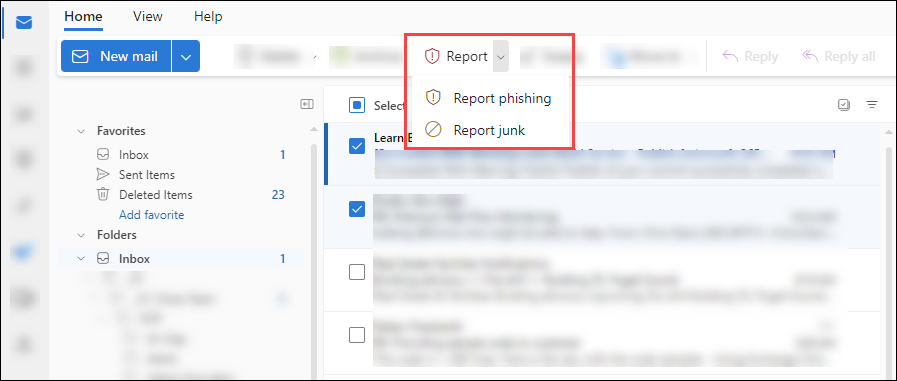
- In the Home tab, find the Report option in the ribbon.
- Click on Report, then select either:
- Report Junk to mark it as spam.
- Phishing to report a phishing attempt.
- Follow the prompts to submit the report to Microsoft for review.
Why Report Spam or Phishing Emails?
- Reporting helps improve Microsoft’s filters to prevent similar emails from reaching other users.
- It protects your personal and organizational data from being compromised.
What Happens After You Report?
- Microsoft will analyze the report and, if necessary, block the sender or mark future emails as junk.
Need Help?
If you have trouble reporting a suspicious email or need further assistance, feel free to contact your IT support team.